Know what is in the store room before it runs out.
Menoosh keeps your stock next to your menu. Every sale takes its ingredients out, the panel tells you what is running low, one tap sends the order to the supplier on WhatsApp, and the paper invoice from the market becomes a draft that the manager confirms after counting the delivery. The cost lands in Expenses on its own.
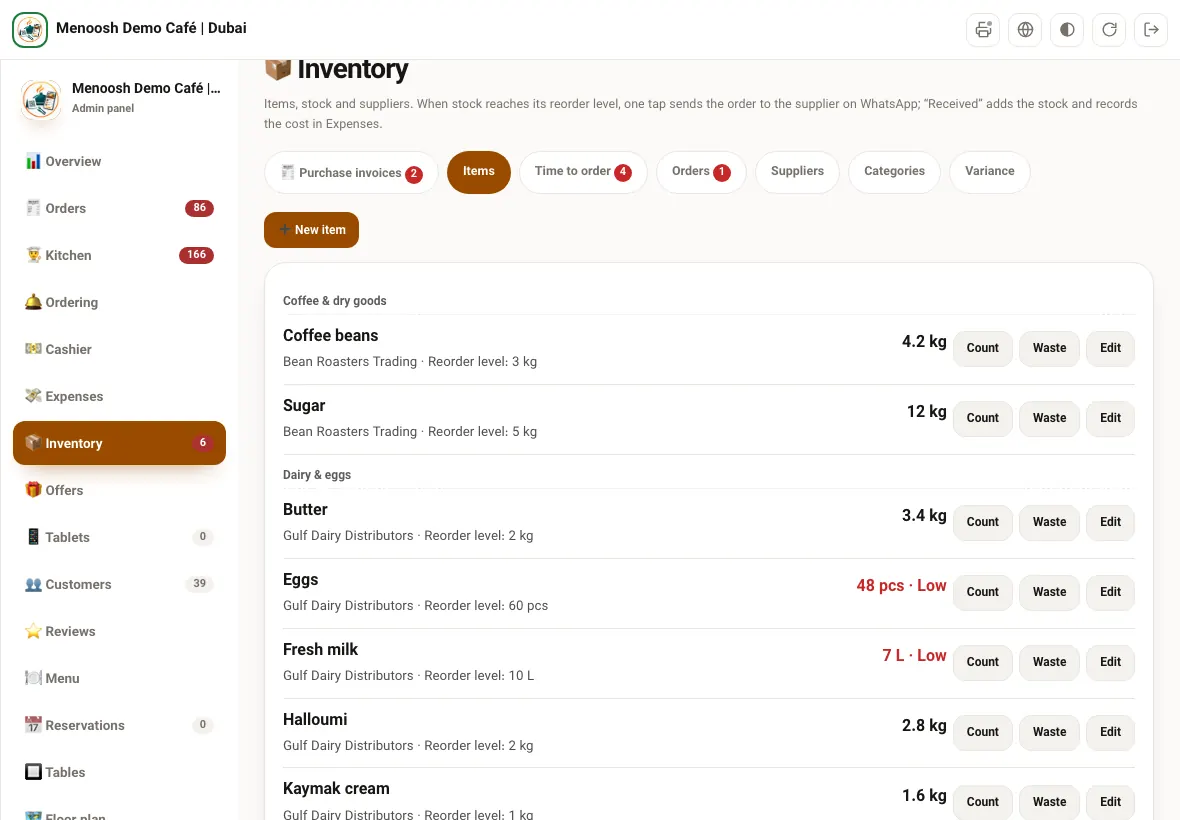
Every item, its supplier and the level where you reorder
Add the things you buy: eggs by the piece, milk by the litre, beef by the kilo, mint by the pack. Each item gets a reorder level and the quantity you usually order, and sits in a category such as Dairy, Meat or Dry goods so the list reads like your store room.
Each item has a main supplier and up to five backup suppliers, and Menoosh remembers the last price you paid each of them. When the main supplier is out, you can see straight away what the backup charged last time.
Count and Waste are one tap on every row. Count means "this is what is on the shelf now"; Waste records what went in the bin. Every change is kept in the item's history with the time and the person who made it.
Units that match the shelf
Kilos, grams, litres, millilitres, pieces, boxes, packs, trays, bottles, cans and bags.
Low shows in red
When stock reaches the reorder level the item is marked Low and moves to Time to order.
Backup suppliers
Up to five per item, each with the last price you paid.
History per item
Receipts, sales, counts and waste, with time and name.
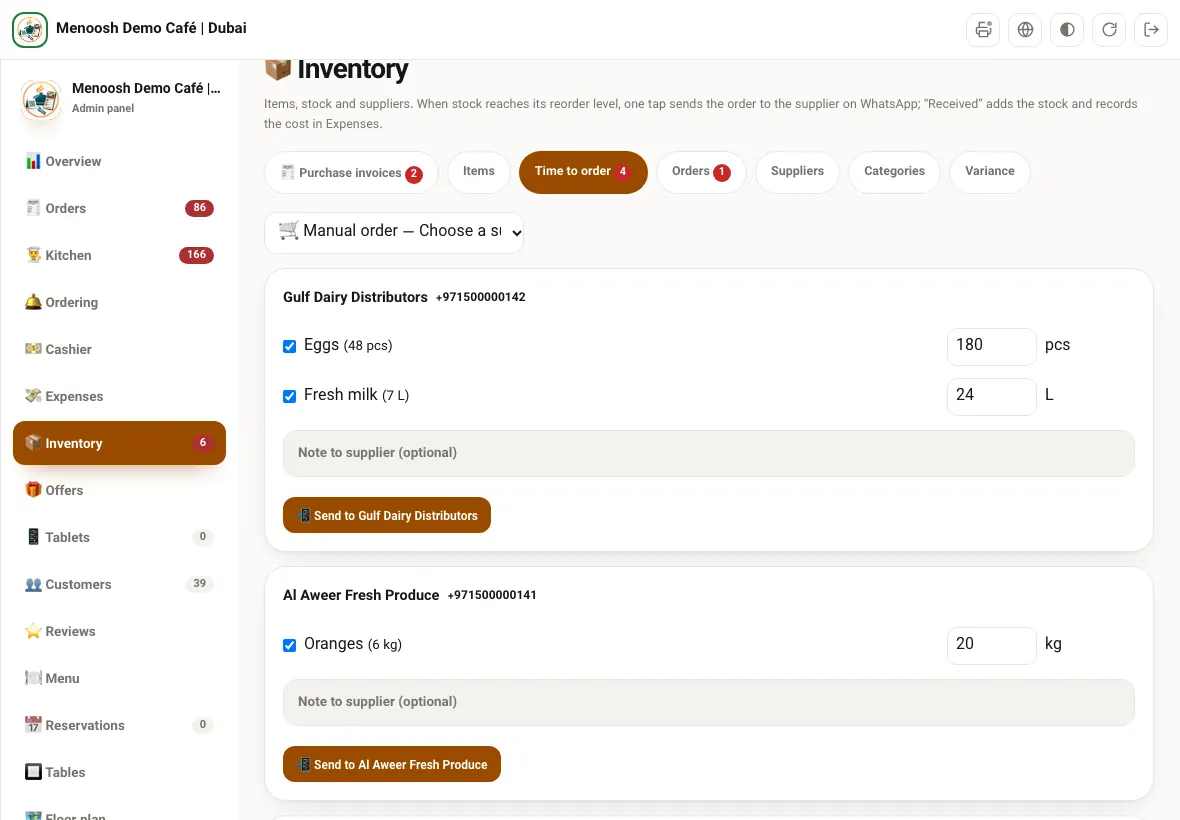
Time to order: the supplier gets it on WhatsApp
The Time to order tab gathers every low item and groups it by supplier, with the usual order quantity already filled in. Untick what you do not need, change a quantity, add a note, and tap Send.
The order goes out from your restaurant's own WhatsApp number, in the supplier's language: English, Arabic or Persian, set once per supplier. If your WhatsApp is not connected, the same message opens in WhatsApp on the tablet, ready to send. Either way the order is saved in Orders as awaiting delivery, and tapping Send twice does not send it twice.
The owner does not have to watch the screen. When an item drops to its reorder level, one alert goes to the owner's phone on OnpChat, with a link straight to Time to order. It does not repeat until the item has been restocked and runs low again.
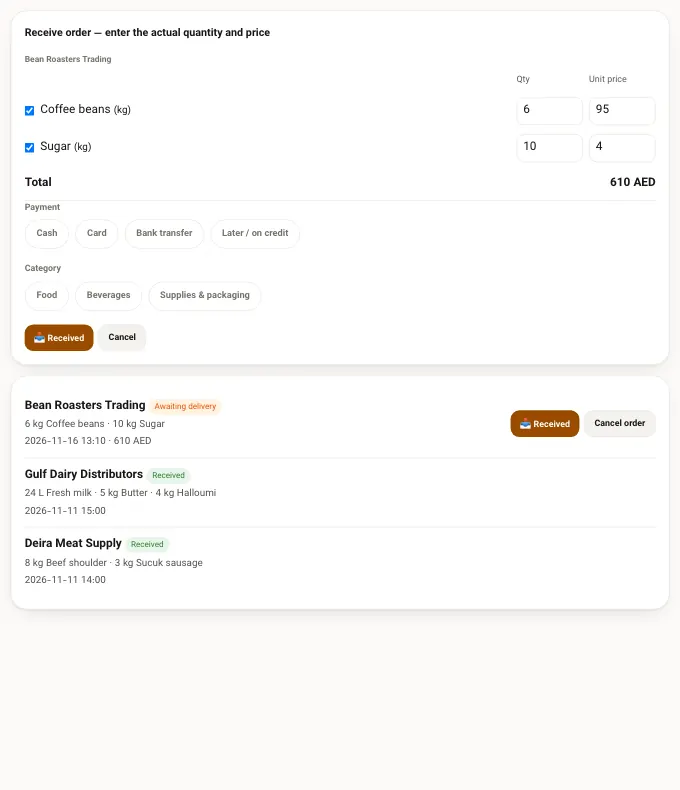
When the delivery arrives, enter what actually came
Open the order and tap Received. The quantities and prices from the order are already there; change them to what the driver actually unloaded and what the supplier actually charged. Untick anything that did not come.
Choose how you paid (cash, card, bank transfer, or later on credit) and the expense category. Stock goes up, the supplier's last price is updated, and unless you chose later, the purchase is written into Income and expenses without anyone typing it again.
The paper invoice from the market, without typing it
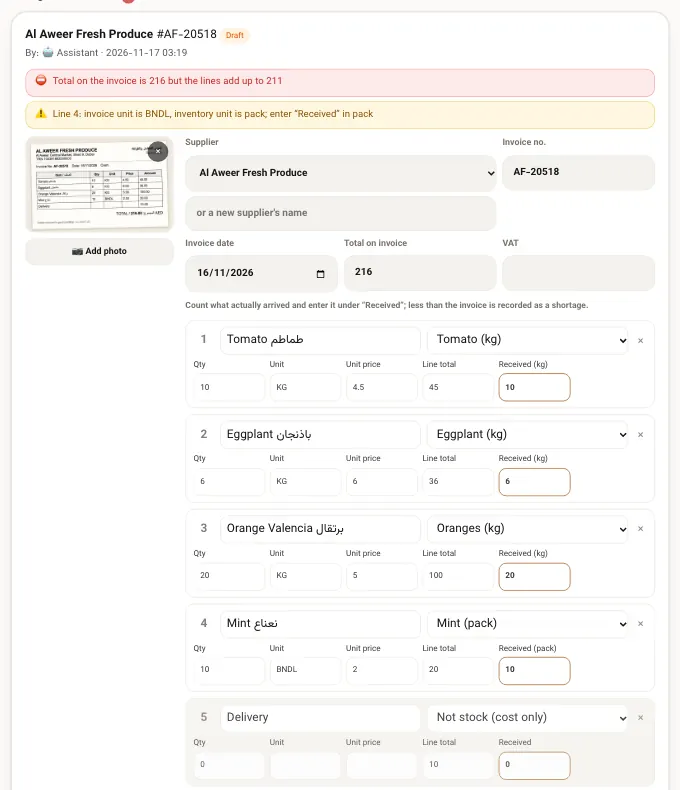
Not everything is ordered ahead. Someone goes to the market in Al Aweer, comes back with a printed or handwritten invoice, and in most restaurants it ends up in a drawer. In Menoosh it becomes a purchase invoice: take a photo in the panel and tap Read automatically. The assistant reads the supplier, the invoice number, the date and every line, and fills in a draft. It usually takes under a minute.
Nothing touches stock yet. Menoosh checks the draft first and shows what does not add up: the total on the paper against the sum of the lines, quantity times price on each line, the same invoice number from the same supplier entered twice, a handwritten invoice with no total, a line that is not linked to a stock item, or a unit on the invoice that differs from your stock unit.
Then the manager counts what really arrived and types it under Received. Anything less than the invoice is saved as a shortage. Only after Confirm does stock go up and one expense go into Income and expenses. If the total really does differ, the manager has to tick that they checked it and write the reason.
Menoosh learns the names suppliers print. Once "Orange Valencia" is linked to your Oranges, the next invoice from that supplier links it by itself. Invoice photos show supplier prices, so they are kept privately and only the restaurant's managers can open them.
Totals checked
Lines against the printed total, and quantity × price on every line.
Duplicates caught
The same invoice number from the same supplier is flagged.
Count before confirm
Received quantities are entered by the manager; shortages are kept.
Private photos
Only the restaurant's managers can see the invoice photo.
Every dish takes its ingredients out of stock
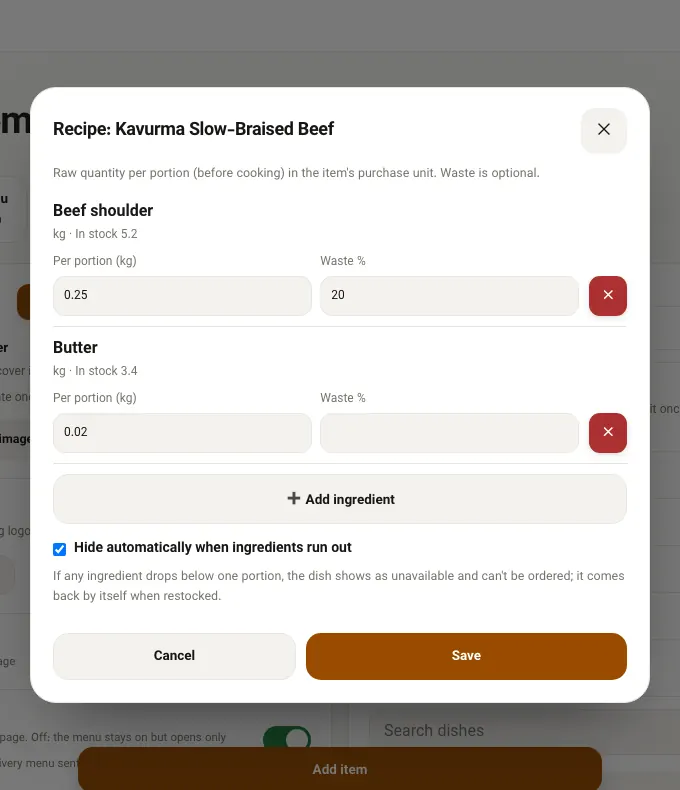
Give each dish a recipe: the raw quantity of each ingredient for one portion, in the unit you buy it in, with an optional waste percentage for trimming. Dishes with sizes can have a different quantity for each size.
From then on, every order takes the ingredients out of stock by itself: from the QR menu, from WhatsApp, and from the waiter's tablet. If an order is rejected or a waiter voids an item, the ingredients go back.
Switch on Hide automatically when ingredients run out and the dish shows as unavailable on your menu as soon as any ingredient is below one portion, so guests cannot order what the kitchen cannot make. It comes back by itself when the stock is received.
What should be on the shelf, and what is
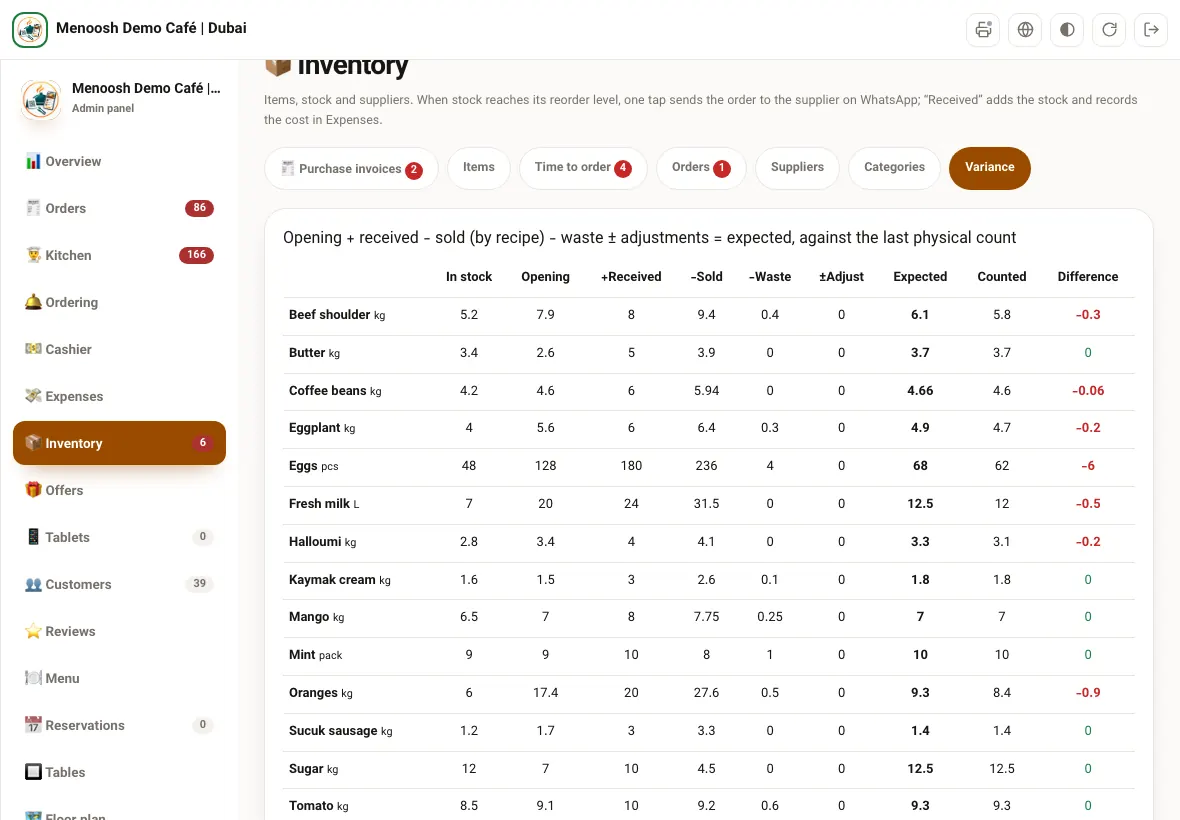
The variance report puts the numbers side by side for every item between your last two counts: opening stock, plus what was received, minus what was sold according to the recipes, minus waste, plus or minus adjustments. That is what should be there. Next to it, what was counted, and the difference.
A small difference on fresh produce is normal. A difference that keeps growing on the same item is where you look: portions larger than the recipe, waste that is not being recorded, or deliveries signed for but not received. Stock is allowed to go below zero in the books, so a missing delivery shows up here instead of being hidden.
Purchases go into the books by themselves
Every received order and every confirmed purchase invoice becomes one expense in the panel's Income and expenses, with the supplier, the amount, the payment method and the category, such as food, beverages or supplies and packaging. Cash paid out of the cashier's drawer for something bought in the morning is recorded there too, so nothing is entered twice.
Income and expenses shows the month's sales against costs by category, so the owner sees what the kitchen spent on ingredients next to what the restaurant sold.
Built for a busy kitchen, not for an accountant
Cafés and bakeries
Milk, beans, eggs and butter that run out fast and are ordered several times a week.
Restaurants with a market run
Fresh produce bought with cash from the market and a paper invoice to match.
Owners who are not always there
A low-stock alert on the phone and the numbers in the panel.
Any tablet
It runs in the browser, in English, Arabic and Persian. Nothing to install.
Only managers
Inventory, supplier prices and invoice photos are for the restaurant's managers.
Part of the panel
Next to orders, the cashier, the kitchen and the day report.
What changes in the store room
Without Menoosh
- Someone notices the milk is finished during breakfast
- Orders to suppliers live in one person's phone
- Market invoices pile up in a drawer
- Nobody knows why the beef runs out faster than it sells
- Purchases are typed into a spreadsheet at the end of the month
With Menoosh
- Low items show in red and the owner gets an alert
- Orders go from the restaurant's WhatsApp and are kept
- Invoices are read from a photo and confirmed after counting
- Recipes and counts show where the difference is
- Every purchase is in Income and expenses as it happens
What owners ask about inventory
Do I have to write recipes for every dish to use inventory?
No. Stock, suppliers, WhatsApp orders, receiving and purchase invoices all work without recipes. Recipes add automatic deduction with each sale and the variance report, and you can add them dish by dish.
Does the supplier need an app?
No. The order reaches the supplier as an ordinary WhatsApp message in their language. If your restaurant's WhatsApp is not connected, the message opens in WhatsApp on your tablet for you to send.
What if the market invoice is handwritten?
Take a clear photo and tap Read automatically, or type the lines yourself. Menoosh marks an invoice with no printed total, and the manager confirms only after counting what arrived.
Is anything added to stock before the manager confirms?
No. A purchase invoice stays a draft until the manager confirms it. Only then does stock go up and the expense get recorded.
What happens to stock when an order is cancelled?
If an order is rejected, or a waiter voids an item, the ingredients that were taken out for it go back into stock.
Who can see supplier prices and invoice photos?
Only the restaurant's owner and managers in the panel. Invoice photos are stored privately and are not shown to cashiers, waiters or guests.